
Practical Ways to Reduce Digital Clutter starts here: readers discover exact steps to clear inboxes, files, photos, and apps without heroic effort. They learn quick audits, repeatable routines, and tools that stop mess from returning. This guide uses concrete counts, short sessions, and real mistakes to show what works in 2026. It’s written for people who want clear, actionable moves, not philosophy, and it focuses on outcomes like fewer open tabs, reduced subscriptions, and a calmer screen-first day.
Key Takeaways
- Perform a rapid digital audit counting unread emails, open tabs, and duplicate photos to identify clutter hotspots effectively.
- Use the ‘touch it once’ rule in inbox management by replying, archiving, or deleting emails promptly to reach inbox zero.
- Set filters and smart folders to automatically organize receipts, newsletters, and alerts, reducing 80% of incoming inbox clutter.
- Organize files and photos into broad, shallow categories with consistent naming to enhance retrieval and reduce overwhelm.
- Establish daily, weekly, and quarterly micro-routines such as 5-minute tidies and quarterly app removals to prevent clutter relapse.
- Combining measurable audits and simple inbox rules with mindful living leads to fewer notifications and clearer digital focus.
Audit Your Digital Life: Quick Steps To Map What You Have
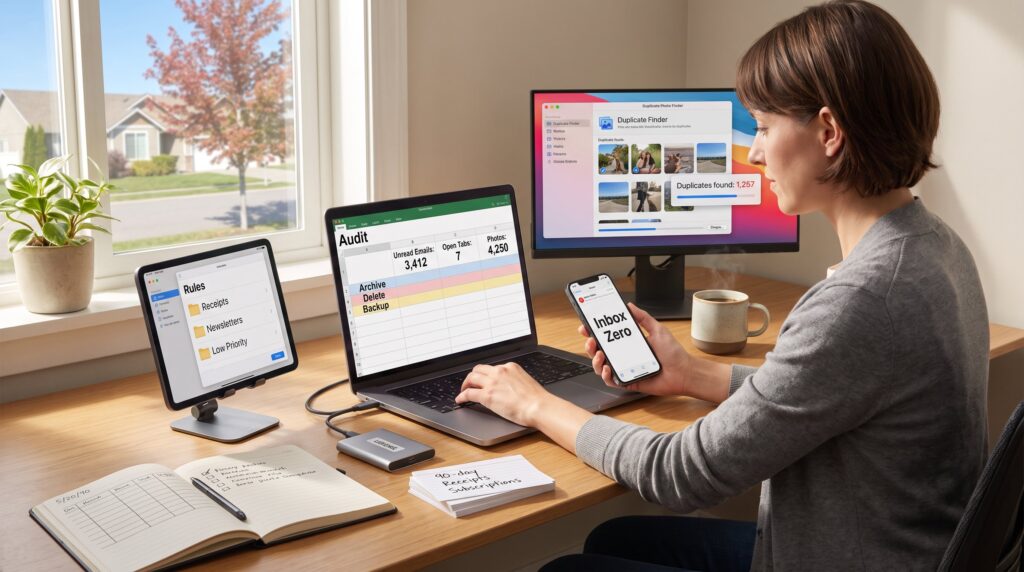
Fact first: a rapid audit shows where clutter lives and gives measurable targets to reduce it. They start by listing devices, email accounts, cloud services, and active apps and then record counts: unread emails, open tabs, photo totals, and the largest folders. A simple table on paper or a single spreadsheet column works better than mental notes.
Concrete steps: count desktop icons (e.g., 43), downloads folder size (18 GB), unread emails (3,412), and photo duplicates (1,257). Mark anything unused for 90 days: apps not opened, subscriptions not billed, or dormant cloud folders. That 90-day rule reveals 60–80% of candidates for removal in most audits.
Practical traps and lessons: one person deleted a folder labeled “Maybe” and later lost a tax receipt, the lesson: always back up critical documents before mass deletion. They should export receipts and legal files to a dedicated backup location and note the backup path.
Tools and examples: use built-in storage settings on macOS or Windows to find largest folders, and run a duplicate-photo finder for precise counts. For browser tabs, sort by domain and close tabs not accessed in the last week. After this audit, they will have a short list of removals, archivals, and items to move to long-term storage.
Links: For framing the bigger lifestyle shift, many readers link this work to a broader simple-living practice in a simple living guide.
Inbox And Messaging Cleanup: Fast Rules To Reach — And Stay — Zero
Answer up front: they can reach inbox zero by batching, deciding once, and automating routing. The fastest rule is “touch it once”: read, reply, archive, or delete. If a reply takes under two minutes, reply immediately. Longer tasks go to a to-do list with a deadline.
A 20-minute sprint works well: sort by sender and date, then delete system alerts older than 90 days. For chat apps, mute noisy groups and export important threads to a project folder. Use the archive function liberally: archive removes clutter without permanent loss.
A common mistake: people archive everything and forget to review archived items. The fix: schedule a 10-minute monthly review of archived folders and a quarterly unsubscribe session.
Practical numbers: expect to reduce a typical messy inbox by 70% in one session. For heavy users, three sessions over two weeks usually achieve stable zero. Encourage using the search bar to find high-volume senders and bulk-remove their past messages.
Cross-links: For organizing communication habits and a calmer feed, readers often pair this with tips on how to curate a calmer space.
Set Filters, Unsubscribe, And Use Smart Folders
Clear answer: filters and smart folders stop 80% of future inbox clutter. They create rules that send receipts to a receipts folder, newsletters to a reading folder, and alerts to a low-priority label.
How to do it: identify three high-volume message types, receipts, newsletters, and system alerts, then create one rule per type. For example, any message with “receipt” or “order confirmation” in the subject moves to a Receipts folder and gets auto-archived after 365 days. Use smart folders or labels rather than deep nesting: a small set of predictable folders speeds retrieval.
Unsubscribe tactics: use a single-pass unsubscribe session. Scan the last 30 days of newsletters, mark the ones not read, and unsubscribe from them. Keep a tiny reading folder for the 2–3 newsletters that consistently add value.
Automation warnings: rules can mislabel important mail. Test new filters for two weeks, then adjust. For long-term habits, pair filters with regular rule audits, once every six months, to prevent missed messages.
Related reading: To turn these habits into a daily rhythm, see tips for building simple digital habits.
Organize Files And Photos With Practical Systems
Main point: broad, shallow categories beat deep, precise trees. They should organize files into predictable groups like Work, Personal, Finance, and Photos, then split by year for large libraries.
Exact method: create top-level folders named Work, Personal, Finance, Media. Inside Media, keep a Photos folder with subfolders by year and event (2026-03_Beach). Use consistent file naming like YYYY-MM-DD_description to make search reliable. Avoid nesting beyond two levels for frequently used files.
Photos: run a duplicate finder and remove blurry images. Keep a “keepers” folder and a separate long-term archive on an external drive or cloud service. For example, move photos older than two years to a cheap cold-storage bucket: that frees active storage and still preserves memories.
Tools and counts: a typical household finds 30–40% duplicate or near-duplicate photos after a single pass. For important financial and legal files, keep two backups: local encrypted drive and cloud backup with version history.
Cross-link: For people who get overwhelmed starting this process, a short primer on how to start decluttering offers stepwise psychology-friendly tactics.
Set Habits And Tools To Keep Clutter From Coming Back
Direct answer: recurring micro-routines and a few settings changes prevent relapse. They schedule short cleanups, disable nonessential notifications, and remove unused apps every quarter.
Daily and weekly habits: daily 5-minute tidy, close tabs, empty downloads, and archive new mail. Weekly 20-minute session, sort files added that week, delete obvious junk, and review subscriptions. Quarterly purge, uninstall apps not used in 90 days and clear browser extensions.
Tools: use a password manager to reduce duplicate account sign-ups and a subscription tracker to spot recurring charges. For photos, enable automatic backup with selective sync so only chosen albums sync to the main device.
Human lessons: one person kept reinstalling a hobby app and accumulating receipts: the habit they changed was to delete payment info from stores after purchase. That saved them 12 unwanted subscriptions in a year. Another mistake: relying solely on storage warnings: proactive checks before storage fills prevent stress.
Related resources: readers can pair these routines with broader tech mindfulness strategies found in mindful tech tips and adapt morning routines from build a morning routine.
Conclusion
Key insight: Practical Ways to Reduce Digital Clutter require measurable audits, simple inbox rules, predictable file systems, and brief repeatable habits. They work best when paired with mindful living choices and occasional audits. Readers who commit to the listed counts and a 5/20/90 cleanup rhythm will see tangible results: fewer notifications, smaller storage bills, and clearer focus.